
GETAWAY GUIDE
How to plan a group trip
From the first ‘where should we go?’ to the final split bill, bring your crew, itinerary and trip details into one shared Getaway plan.
STEP 2
Add co-hosts
Planning a trip is better as a team. Once your trip is set up, bring in your co-planners as co-hosts so you can split the planning, build the itinerary together, and manage the group seamlessly.
- Open Hosted By
- Tap + Add
- Share Invite Link
- Manage Together
Co-host privileges
Co-hosts share full access to edit and manage the plan, update schedules, add or modify bookings, and manage other hosts.
Instant invite link
Tap + Add under Hosted By to generate a dedicated co-host invite link with one tap.
Quick share options
Send the link directly via WhatsApp, Messages, SMS, or Email so your planning partners can join straight away.
Keep host links private
Anyone with this link becomes a co-host. Share it only with fellow organizers—not with general trip guests.
STEP 3
Invite your travel companions
With your co-hosts ready, bring the rest of the crew into the plan. In Getaway, inviting guests gives everyone a single source of truth for dates, itinerary, and stay details. Guests can RSVP with one tap, vote in polls, chat, and manage shared expenses—while keeping core schedule editing reserved for hosts.
- Tap Guests Pill
- Pick Friends or Copy Link
- Share via WhatsApp or Chat
- Collect Live RSVPs
Fast invites via link or search
Tap Guests in the action bar to share a direct invite link via WhatsApp, Messages, or Email, or search and invite friends from your Getaway network in one tap.
One-tap RSVPs & group participation
Guests can respond with Going, Maybe, or Can’t Go, chat right beside the plan, vote in date or activity polls, and view the live guest list and travel details.
Full shared expense collaboration
Guests have real write access to money: anyone can add shared expenses, edit or remove their own payments, check balances, and record repayments without asking hosts for permission.
Protected itinerary & host controls
Guests get a clean read-only view of flights, lodging, rental cars, and the day-by-day itinerary. Editing schedules, changing trip covers, sending blasts, and managing budgets stay safely with hosts.
“I’ve started our trip in Getaway! Tap the link to RSVP, check out the travel dates and stay info, and drop your must-do ideas in the chat.”
STEP 4
Add the trip essentials
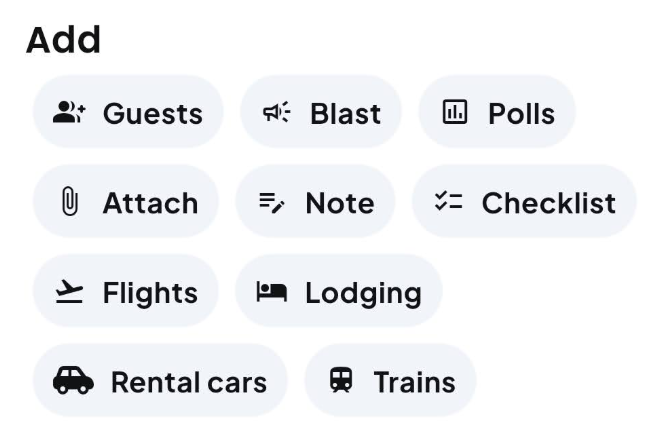
Let’s give powers to your trip. Use the Add bar to pin travel bookings, shared checklists, and quick coordination tools right to your plan—no more searching through buried emails or messy chats.
- Logistics
- Checklists
- Notes & Files
- Polls & Blasts
Travel logistics
Pin flights, lodging, rental cars, and train reservations with confirmation codes and addresses for instant group access.
Shared checklists
Coordinate group gear and packing lists so the crew can tick off items in real time.
Notes & attachments
Keep door codes, Wi-Fi passwords, house rules, and PDF tickets directly on your trip dashboard.
Polls & Blasts
Settle choices fast with group polls and broadcast urgent announcements to everyone with blasts.
STEP 4.A
Send targeted Message Blasts
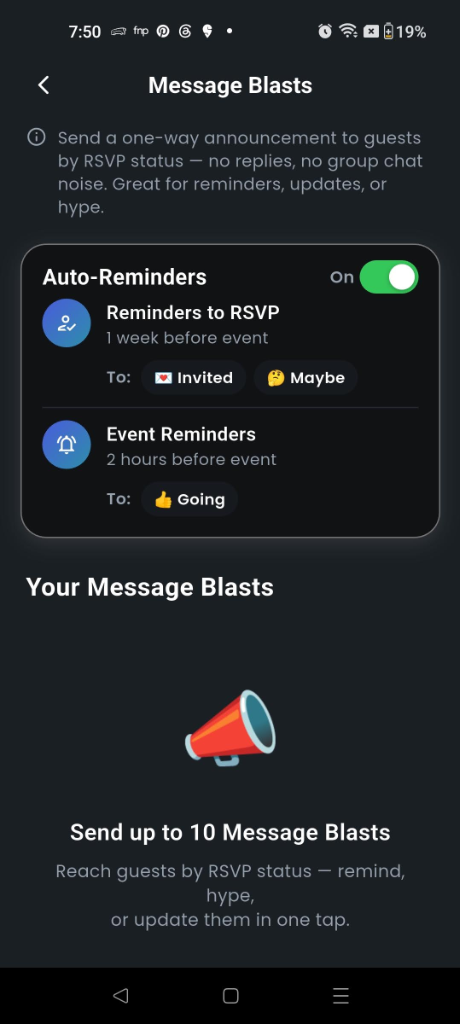
When you need to deliver critical updates without getting lost in group chat noise, use Message Blasts. Blasts are dedicated, one-way announcements from the host team that trigger instant push notifications and land in guests’ in-app notification inboxes—keeping communication clean and actionable.

Tap Blast in the “Add” essentials bar
Located right in your trip essentials menu alongside Guests and Polls. Tapping Blast opens your host-exclusive broadcast studio to send one-way announcements and configure smart reminders.
- Tap Blast Card
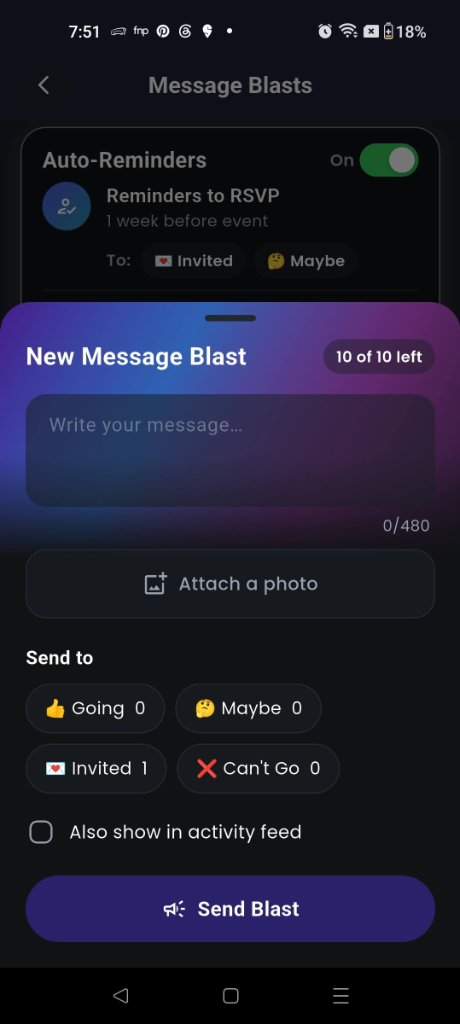
- Write Announcement & Add Photo
- Select RSVP Audience
- Broadcast Push Alert
One-way host announcements
Only the creator and co-hosts can compose blasts. Announcements bypass chat banter, fire immediate push alerts, and remain in a dedicated history tab.
Audience targeting by RSVP
Direct your blast specifically to Going, Maybe, Invited (unresponsive), or Can’t Go. The sender is excluded, and recipients freeze at send time.
Shared plan quota (10 total)
Each trip has an allowance of 10 permanent blasts shared between hosts. Blasts cannot be edited or refunded once sent, keeping every announcement high-signal.
Background auto-reminders
Smart reminders run automatically (7 days prior for Maybe/Invited, and 2 hours prior for Going). They keep RSVPs moving without consuming your 10 manual blasts.
STEP 4.B
Coordinate chores, packing & decisions
Group trips frequently hit friction during everyday planning chores: endless debates over dinner spots, luggage clogged with duplicate gear, and hosts fielding repetitive questions about Wi-Fi codes and boarding passes. Getaway’s coordination tools streamline these tasks directly inside your trip dashboard.



 RESOLVE CLASHES
Settle choices & avoid group deadlock
Skip endless group chat debates—put restaurants, excursions, and budget picks to a quick, decisive member vote.
SHARED CHORESStreamline packing & assign group gear
Share packing lists and split group gear in real time so the crew avoids duplicate luggage and never leaves essentials behind.
SELF-SERVE ACCESSStop repetitive host questions 24/7
Pin Wi-Fi passwords, lockbox codes, and house rules right on the dashboard so guests can self-serve access without texting you.
OFFLINE TICKETSKeep tickets & booking documents handy
Put flight boarding passes, rental car vouchers, and PDF tickets at everyone’s fingertips without digging through buried email threads.
STEP 4.C
Add flights to your trip plan
Coordinating group flights is notorious for messy group chat messages: “What terminal are you landing at?”, “Did your flight get delayed?”, or “Which gate are we meeting at?”. Getaway eliminates airport confusion by giving you two seamless ways to add flights: search by flight number or auto-import from an e-ticket attachment.
Method 1: Search by flight number
Search any flight by airline and number to pull verified route schedules, track delays automatically, and pin gate notes directly to your trip dashboard.
- Tap Flights Pill
- Select Airline & Number
- Pick Departure Date
- Instant Route Match
- Add to Trip Plan
Smart airline auto-complete
Live schedules & automatic delay tracking
One-tap dashboard pinning
Add gate numbers as quick notes
Method 2: Import from ticket attachment (PDF or screenshot)
Already booked your tickets? Skip typing altogether. Upload your booking confirmation—whether it’s a PDF e-ticket or a screenshot—and let Getaway’s AI document reader extract every route detail automatically.
- Tap Attach Ticket
- Upload PDF or Image
- AI Scans Details
- Review Route Card
- Add to Trip Plan
Universal format & carrier support
Instant AI document extraction
Side-by-side flight carousel
Zero manual typing
STEP 4.D
Manage stays, rental cars & trains
Just like adding flights, Getaway handles all of your other travel reservations with the exact same seamless workflow: either search by name to match verified details, or attach your confirmation voucher (PDF or screenshot) to let AI extract every reservation detail into your group dashboard.


 HOTELS & AIRBNBS
Lodging & Stays
- 1-Tap navigation: Exact address with instant links to Google Maps or Apple Maps.
- Check-in windows: Clearly visible check-in and check-out dates and times.
- Lockbox & Wi-Fi notes: Pin entry codes, access instructions, and Wi-Fi credentials.
- Voucher attachment: Keep booking confirmations and receipts offline-ready.
VEHICLES & VANSRental Cars
- Depot locations: Designated pick-up and drop-off terminal or city branches.
- Return deadlines: Clear drop-off time alerts to prevent late return penalty fees.
- Driver assignments: Note primary and authorized co-drivers for the rental.
- Rental agreements: Store voucher PDFs, toll policies, and emergency roadside numbers.
RAIL & TRANSITTrains & Rail
- Route & station stops: Departure station, arrival depot, and route numbers.
- Platform & seats: Track platform announcements, carriage numbers, and reserved seats.
- Scannable passes: Keep digital QR rail passes handy for ticket conductors.
- Connection timing: Synchronize transfer windows between flights and regional rail.
Your pre-trip check
- Shared trip is created with dates and destination.
- Co-hosts are added to help manage the plan.
- Guests are invited with their RSVPs confirmed.
- Important announcements and reminders are set via Message Blasts (Step 4.A).
- Checklists, notes, and key booking attachments are in place (Step 4.B).
- Group flights are added via number search or ticket import with live route info (Step 4.C).
- Stays, rental cars, and train reservations are pinned with addresses and voucher PDFs (Step 4.D).
Common questions
Can guests reply to a Message Blast?
No. Message Blasts are intentionally one-way to prevent important updates from getting buried in reply threads. Guests can continue the discussion in the plan chat.
Do automated reminders reduce the 10-blast limit?
No. Automatic RSVP reminders (7 days out) and event reminders (2 hours out) are managed by Getaway’s background service and do not consume your 10 manual blasts.
Where can I learn more about itineraries and group expenses?
Take a look at our focused guides on Creating an AI itinerary and Tracking and splitting group expenses.