
GETAWAY GUIDE
How to track and split group expenses
Log shared trip costs, choose from 5 split methods, tag costs to itinerary stops, see who owes whom in real time, and settle up in one tap.
STEP 1 · SETUP
Currency setup & group budget lock: One clear ledger for everyone
Shared travel is about great memories, not awkward math in the group chat or tracking who paid for iced coffees in a clumsy spreadsheet. In Getaway, every hangout and trip comes with its own real-time expense ledger shared by every member who joins the plan.
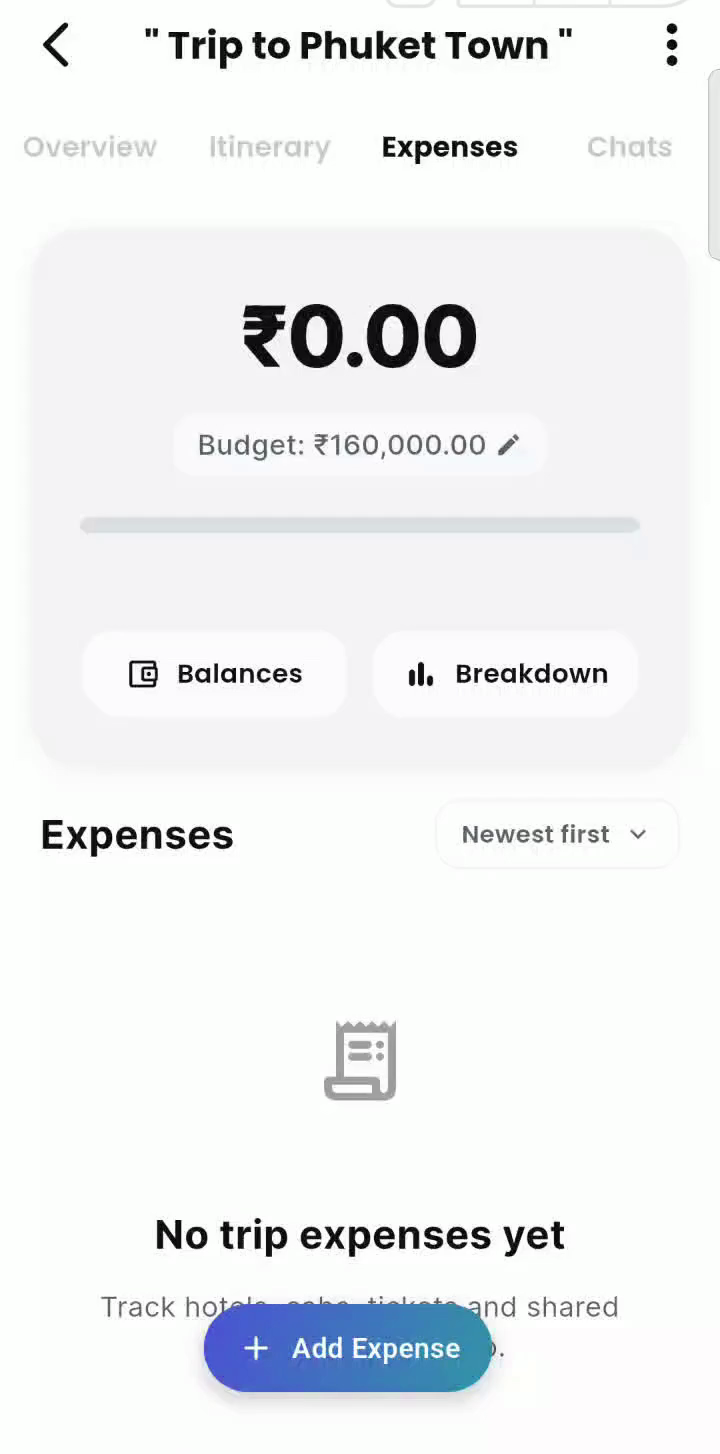
- Open Trip / Hangout
- Tap “Expenses” Tab
- Select Plan Currency
- Enter Group Budget
- Currency Locks on 1st Expense
Find Expenses right inside the plan
Every hangout and trip has its own dedicated Expenses tab accessible in the mobile app and at app.usegetaway.com. Anyone who has joined the plan can see the shared feed, log costs, and view real-time balances.
Set your group currency
The host or co-host picks the plan’s currency from the full searchable list of world currencies — INR (₹), USD ($), EUR (€), AED (د.إ), THB (฿), and more. New plans start in INR.
Define a target group budget
Set an optional group spending ceiling (e.g. ₹160,000.00 for our Phuket getaway). As expenses accumulate, the ledger benchmarks collective spend against your cap in real-time.
The Currency Lock safeguard
Once anyone adds an expense or records a settlement, the currency cannot change, so everyone’s balances stay in one currency. Pick it first.
STEP 2 · RECORDING COSTS
Adding an expense: 8-second logging with itinerary linkage
Anyone in the plan can log a cost, whoever actually paid. Whether one friend booked the entire beachfront villa, another rented motorbikes, or someone grabbed lunch for the group, logging takes seconds and updates everyone’s standing immediately.
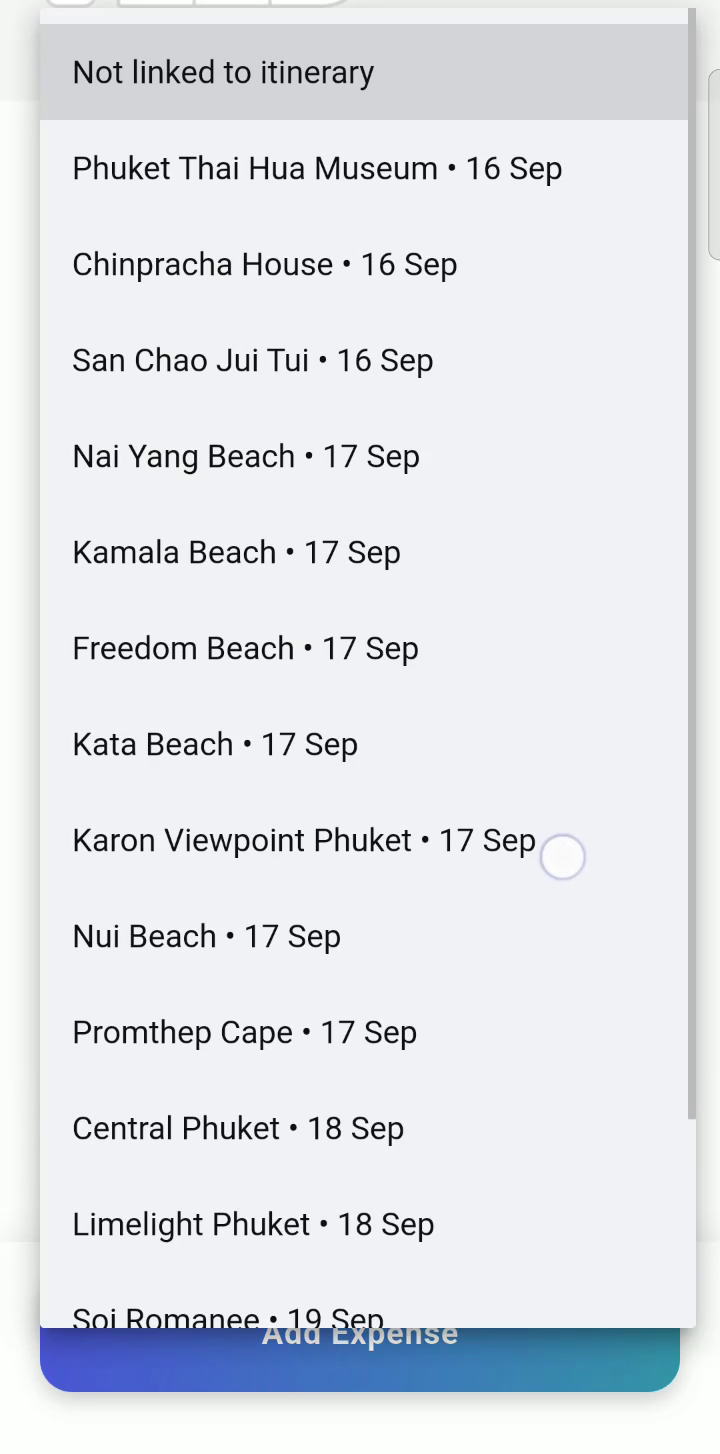
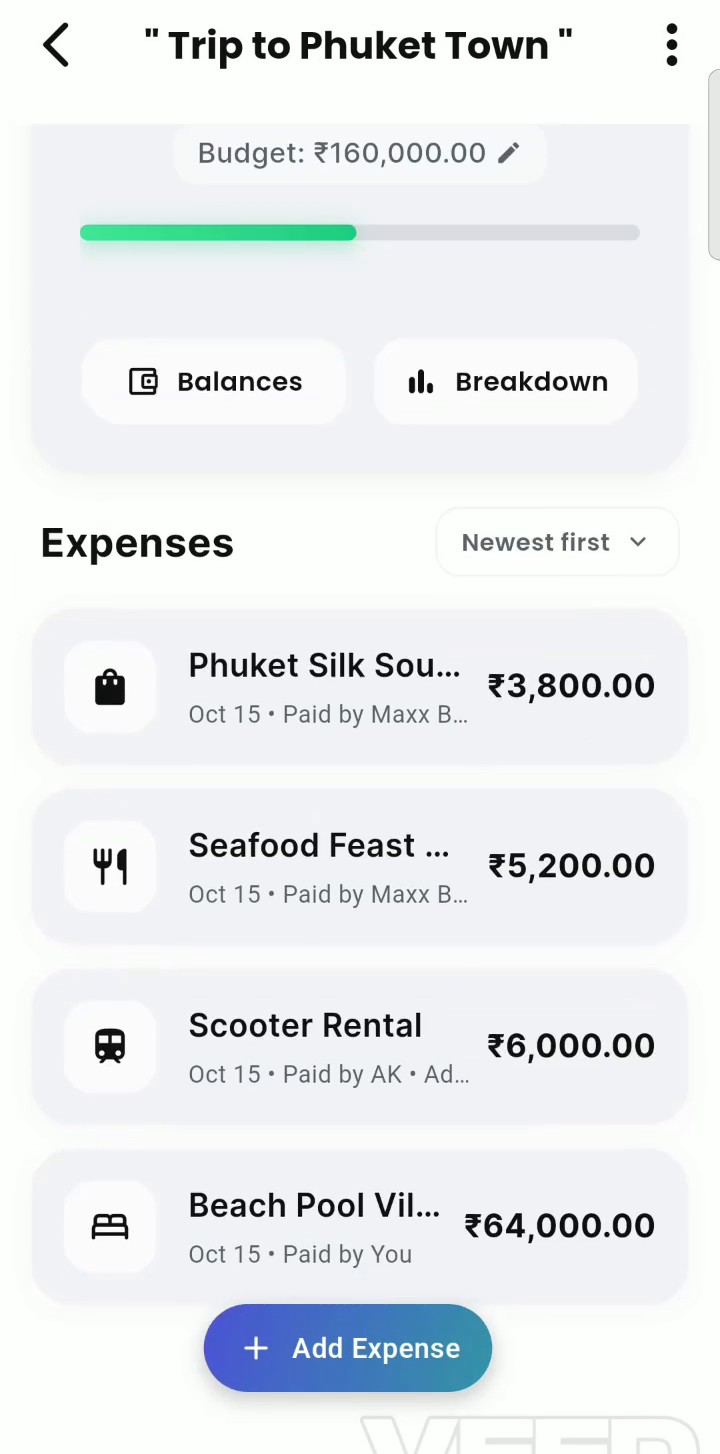
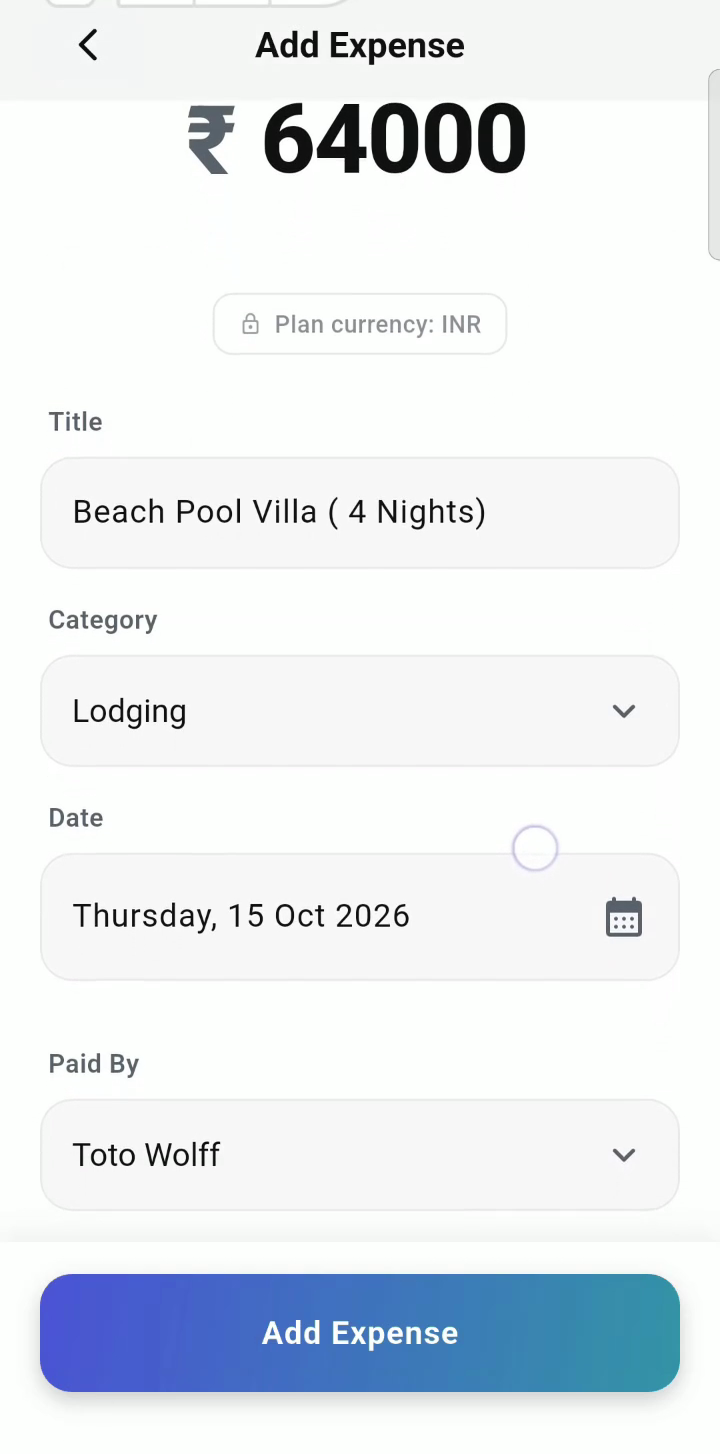
- Tap ”+ Add Expense”
- Enter Amount & Title
- Select Category (12 Options)
- Choose Payer & Members
- Tag Itinerary Stop & Save
Enter amount and title
Tap + Add Expense, type the exact cost (e.g. ₹64,000.00), and add a clear descriptive title like “Beach Pool Villa (4 Nights)” or “Scooter Rental”.
12 Purpose-built categories
Choose from Flights, Lodging, Car Rental, Transit, Food, Drinks, Sightseeing, Shopping, Gas, Groceries, Activities, or Other. Trips surface travel logistics first; hangouts prioritize food and drinks.
Assign who paid
Select any member of the plan from the dropdown—it doesn’t have to be you. In our Phuket demo, Toto Wolff paid for lodging, AK paid for scooters, and Maxx Boy covered seafood and silk souvenirs.
Tag the itinerary stop it belongs to
Link the expense to a stop on your itinerary, such as “Day 1: Villa check-in” or “Day 2: Phuket Old Town”, so everyone can see what each cost was for.
Log it from the chat
Add an expense straight from the trip chat. It posts a live expense card right in the message stream, so everyone sees it as it happens.
Set the date and add a note
Pick the day the cost happened — that’s what the day-by-day breakdown uses — and add an optional note for anything worth remembering.
Who can be in a split
Anyone who has joined the plan can be the payer or share a cost. People who were invited but haven’t joined yet aren’t listed until they accept.
STEP 3 · MATH & FAIRNESS
5 Ways to split: Total flexibility for any travel scenario
Not every bill should be split down the middle. One traveler might skip an excursion, another may order separate drinks, or a couple might share a single master bedroom. Getaway provides 5 distinct split formulas to handle every scenario fairly.
| Method | When to use it | Example (₹1,200 dinner) | Result |
|---|---|---|---|
| Equally | Everyone shares the cost evenly. The standard choice for lodging, cabs and group dinners. | ₹1,200 split between Aanya, Rohan and Meera. | ₹400 each |
| Exact amounts | Tabs differ, such as separate cocktails or personal souvenirs. Amounts must add up to the total. | Aanya ₹500, Rohan ₹450, Meera ₹250. | ₹500, ₹450, ₹250 |
| Percentages | Shares agreed as percentages, such as a bigger room or a sponsor covering more. Must add up to 100%. | Aanya 50%, Rohan 30%, Meera 20%. | ₹600, ₹360, ₹240 |
| Shares | Weighted shares. A couple sharing one room takes 2 shares; solo friends take 1 each. | Aanya and partner 2, Rohan 1, Meera 1 → 4 shares of ₹300. | ₹600, ₹300, ₹300 |
| Personal / do not split | Log your own spending against the trip budget without anyone owing anything. | Your own ₹1,200 flight. | Counts toward the budget, ₹0 owed |
STEP 4 · BALANCES
Reading balances & smart debt simplification: Fewer transfers, zero confusion
Getaway computes each member’s standing using a single universal formula: Amount Paid − Individual Share = Net Balance. A positive number means the group owes you money; a negative number means you owe the group.
The Phuket Town case study
Four expenses totalling ₹79,000.00, split equally between three friends (about ₹26,333.33 each). Toto paid ₹64,000 for the villa, AK paid ₹6,000 for scooters, and Maxx Boy paid ₹9,000 for seafood and silk. Settling each pair separately could take up to 3 transfers.
Debt simplification in action
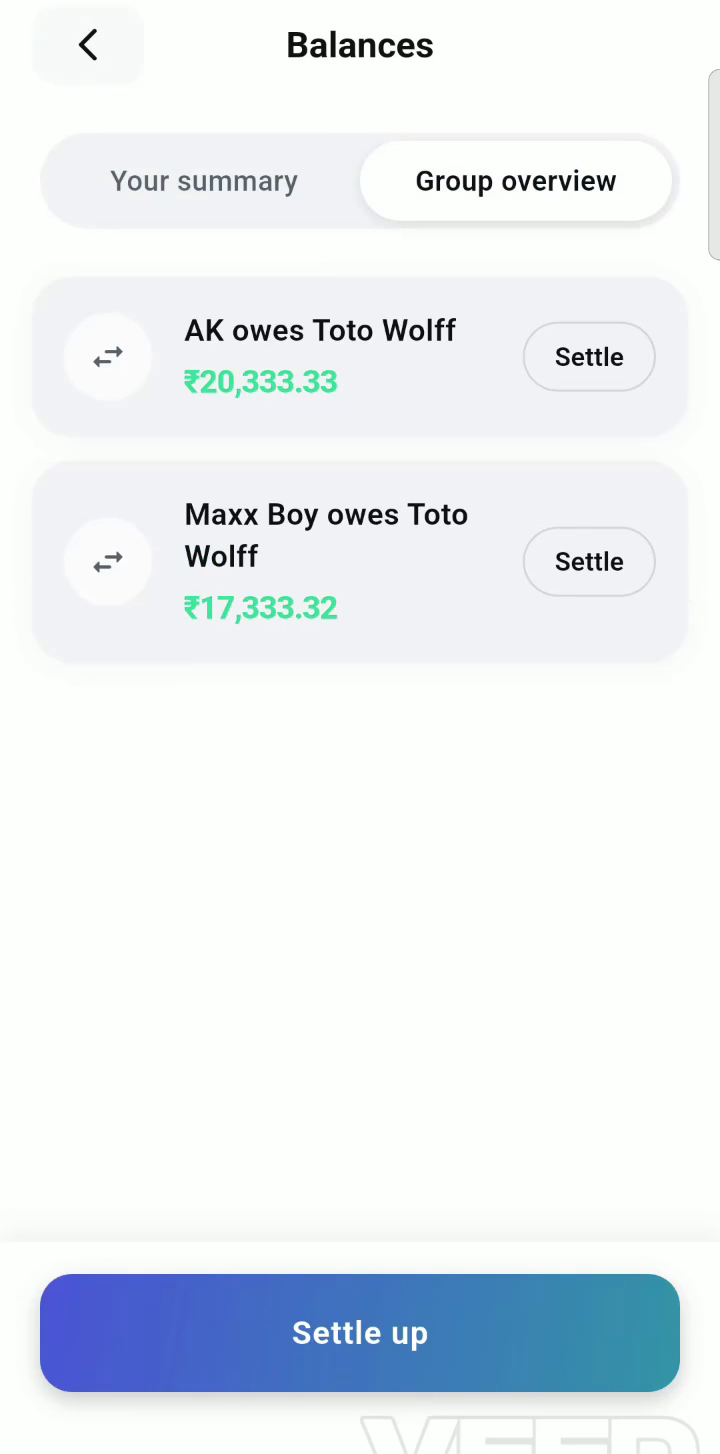
Getaway collapses everyone’s debts into as few payments as possible. The whole trip settles with two: AK pays Toto ₹20,333.33 and Maxx Boy pays Toto ₹17,333.33.
Personal view vs. group overview
Switch between Your Summary (what you paid personally vs your individual share) and the Group Overview to inspect everyone’s balances at a glance.
All settled up state
Once all debts are resolved, the screen celebrates with a clean “No outstanding balances remaining” checkmark so nobody wonders if a payment was forgotten.
STEP 5 · SETTLING UP
Settling up with zero friction: UPI, Cash, and Bank transfers
Pay your friends however you normally would in real life—via UPI (Google Pay, PhonePe, Paytm), instant bank transfer, or cash at the table. Then log the settlement in Getaway so both balances clear in real-time.
- Pay Friend Outside App
- Tap “Settle” on Balance
- Pick Method & Add Note
- Adjust Amount if Partial
- Save & Clear Balance
1-Tap pre-filled settlement modal
Tapping Settle next to any member’s balance automatically pre-populates who paid, who received, and the exact remaining balance (e.g. ₹20,333.33). Zero typing needed.
Partial payments supported
If a friend pays back ₹10,000 now and promises the rest next week, simply edit the amount field. Getaway deducts ₹10,000 and retains the remaining ₹10,333.33 on their ledger.
Tag how you paid
Mark the settlement as Cash, UPI / Bank Transfer, or Other, and add an optional note, such as the UPI reference, for your records.
Getaway doesn’t move money
Money travels directly from person to person via your preferred payment method. Settling up only records a payment you’ve already made, so the group’s numbers match reality.
Settlements are permanent
A recorded settlement can’t be edited or deleted, so the payment history can always be trusted. If one was entered wrong, record a payment in the opposite direction to undo it.
STEP 6 · GROUPS
Expenses with your groups: Every trip’s balances in one place
If you travel with the same crew again and again — college friends, the Sunday cycling gang, the family — keep them in a Getaway group. Every trip and hangout you plan from that group keeps its own expense ledger, and the group’s Balances tab (or Money on web) shows where you stand across all of them.
- Open Your Group
- Plan Trip or Hangout
- Log Expenses in Plan
- Open Group Balances Tab
- Tap Plan to Settle
Link your plans to the group
A plan counts toward a group when you create it from the group, or when you pick the group as the audience while creating it. A plan can belong to up to 3 groups, so a trip with both your college friends and your cousins shows up in both. Plans made without picking the group won’t appear, even when the same people are on them.
What the Balances tab shows
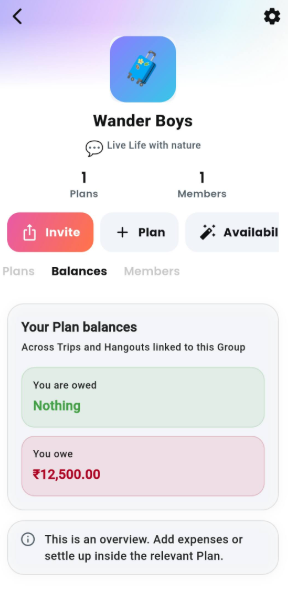
Open the group and tap Balances (or Money on web). You’ll see: Your total (what you’re owed and what you owe across the group’s linked plans), Your balances (one row per person: who owes you or whom you owe, and how many plans it comes from), and By Plan (every linked plan with your balance in it; tap one to jump straight into it). When everything is paid up you’ll see All settled up.
Add and settle inside the plan
The Balances tab is an overview. Expenses and settlements always live inside a trip or hangout, so there is only ever one ledger to trust. To log a cost or record a payment, tap the plan under By Plan and use its Expenses tab.
One currency per plan, never converted
Each plan keeps its own locked currency. If your Goa weekend was in INR and your Dubai trip in AED, the overview shows an INR total and an AED total side by side. Getaway never converts between them, so nothing shifts with exchange rates.
Balances stay per plan
If you owe Aanya ₹500 from the Goa trip and she owes you ₹300 from a dinner, you’ll see both rows. They are not merged into ₹200. That way the overview always matches what each plan’s own Balances tab says, and settling inside one plan never leaves another one off.
app.usegetaway.com.STEP 7 · SPENDING ANALYTICS
Spending breakdown & analytics
Knowing who owes what is only half the battle. Getaway’s analytics suite reveals where your money actually went, tracks spending velocity day-by-day, and helps your crew stay within your target budget.
Visual category percentages
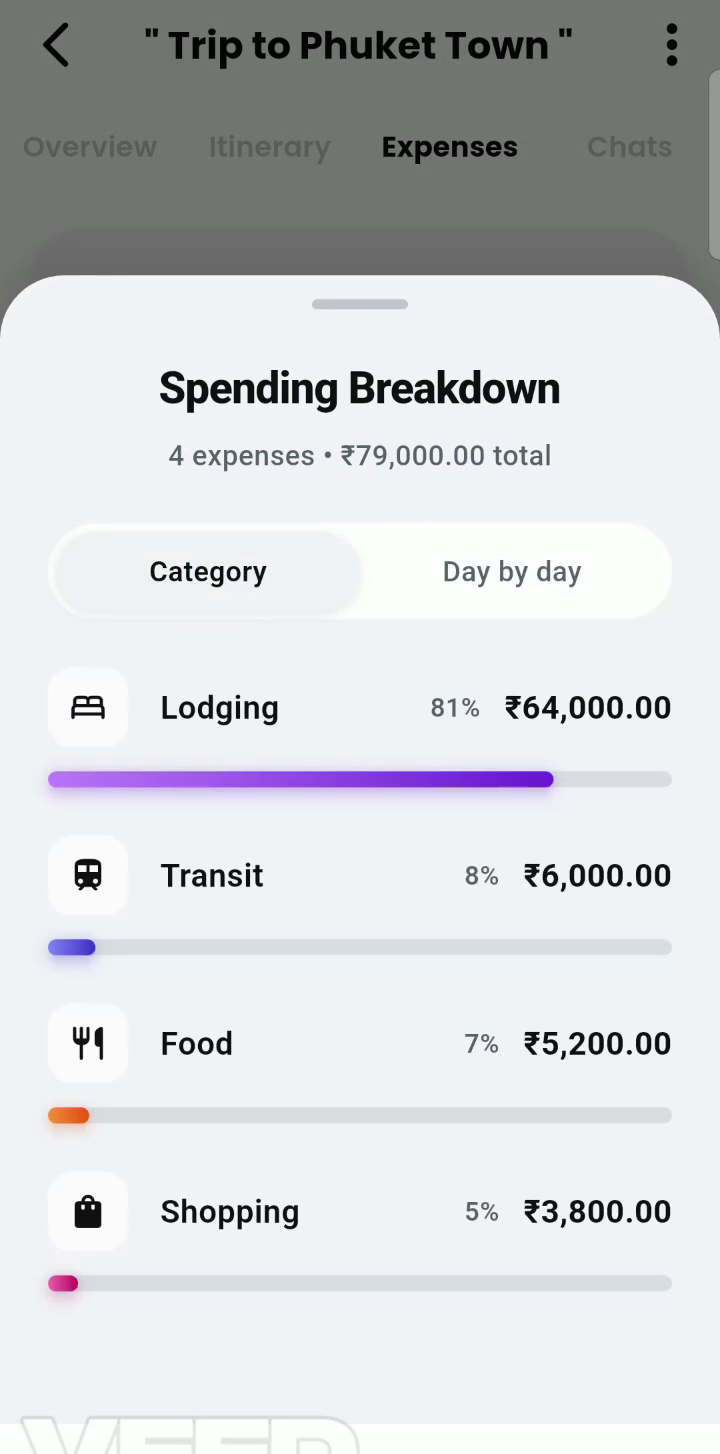
Open Breakdown to see interactive progress bars across every spend category. In our Phuket demo: Lodging accounted for 81% (₹64,000), Transit 8% (₹6,000), Food 7% (₹5,200), and Shopping 5% (₹3,800).
Day-by-day velocity tracking
See which day of your journey consumed the largest slice of your budget, helping you balance high-spend excursion days with relaxing low-cost beach days.
Budget burn gauge
When a budget is set, Getaway continuously displays your remaining headroom (e.g. ₹79,000.00 spent of ₹160,000.00, leaving ₹81,000 remaining headroom).
ROLES & RULES
Permissions matrix & common questions
To keep the group ledger transparent while preventing accidental deletions, Getaway uses role-based financial safeguards:
| Action | Who can do it | Safeguards |
|---|---|---|
| View expenses & balances | Everyone in the plan | Syncs in real time across iOS, Android and web |
| Add an expense | Everyone in the plan | Any member can be the payer; choose who shares it |
| Edit or delete an expense | The person who added it, the host or a co-host | Deleted expenses are hidden but kept on record; balances recalculate instantly |
| Record a settlement | Either person in the payment, the host or a co-host | Permanent — record a reverse payment to undo a mistake |
| Set currency & budget | The host or a co-host | Currency locks once the first expense or settlement is recorded |
| View the group Money tab | Each group member, for their own balances | Read-only overview of plans linked to the group |
Your expense tracking checklist
- Pick the plan’s currency from the full list of world currencies and set an optional budget.
- Remember that the currency locks as soon as the first expense or settlement is recorded.
- Select the appropriate split method (Equally, Exact, Percent, Shares, or Personal / do not split).
- Tag accommodation and excursion expenses with their corresponding itinerary stops.
- Check the Balances tab to see debts collapsed into as few payments as possible.
- Review the Spending Breakdown modal to keep category costs aligned with your budget.
- Pay friends via your favorite payment app (UPI, Cash, Bank Transfer) and tap “Settle” in Getaway.
- Open your group’s Money tab to see your cross-plan balance overview in one place.
Common questions
I added an expense with the wrong amount. How do I fix it?
Open the expense from the feed and tap Edit. If someone else logged it, ask them, the host, or a co-host to edit it. All balances and category charts recalculate immediately once saved.
What happens when an expense is deleted?
It disappears from the feed and balances recalculate straight away, but it’s kept on record. A deleted expense still counts toward locking the plan’s currency.
I recorded a settlement by mistake. How do I undo it?
Settlements can’t be edited or deleted. Record a new settlement for the same amount in the opposite direction, and add a note like “reversing a duplicate”.
Why doesn’t a trip with my friends show in our group’s Money tab?
Only plans linked to the group appear — ones created from the group, or where the group was picked as the audience. Plans made separately stay out, even with the same people.
Why do I see that I owe Aanya and that Aanya owes me?
The Money tab keeps each plan’s balance separate so it always matches that plan’s own ledger. Settle each one inside its plan.
Can I add an expense directly in the group?
Not yet. Expenses and settlements live inside a trip or hangout. Tap the plan in the Money tab to open it.
If someone leaves the plan, do their past expenses break?
No. Each expense permanently remembers the names, photos, and shares of participants at the time it was logged. Historical balances and receipts remain completely intact even after a member leaves.
Can we record expenses in multiple currencies on one trip?
Each plan operates on a single locked currency. If you pay for an item abroad in local cash (such as Thai Baht), convert the amount to your plan’s currency before entering it.
Why does one person show a single paisa / cent more than others?
When an amount doesn’t divide evenly, the extra paisa has to go to someone, so every share still adds up to the exact total.
I paid my friend outside the app, but my balance still says I owe them. Why?
Getaway doesn’t move money. Settling up only records a payment you’ve already made, so the group’s numbers match reality. Record the payment with Settle up.