
GETAWAY GUIDE
How to customise a hangout
Personalize your hangout's aesthetic with themes and animated effects, bring in co-hosts, invite your guest crew, and dial in logistical details with venue pins, dress codes, and run-of-show schedules.
STEP 1 · THEME AND EFFECTS
Theme and effects: Dynamic canvas styling & animated overlays
A memorable get-together starts with mood. Whether you’re hosting an intimate candlelight dinner, an energetic rooftop sunset gathering, or an 80s arcade gaming night, Getaway lets you style your hangout with full-bleed canvas backdrops and floating particle animations that carry across every tab in the app.
- Open Hangout
- Tap Plan Settings (•••)
- Select “Theme” or “Effect”
- Preview Ambient Atmosphere
- Syncs Live to Everyone
Live theme & effect combos
Pair backdrops with animated overlays for an immersive feel — like Midnight Mesh & Blocks, Ocean & Bubbles, Pastel Meadow & Petals, or Clouds & Thunder.
18 Curated themes & custom colors
Choose ambient night skies (Starry Night, Ocean, Sunset), mesh gradients (Midnight Mesh, Vapor Sunset), or clean neutrals (Clouds, Paper). Tap the palette icon for any custom solid hex color.
15+ Animated overlays & dice shuffle
Layer floating particles — party favorites (Confetti, Fairy Lights, Balloons), nature (Petals, Snow), and retro gaming (Blocks, Space War). Tap the Dice icon to roll a random effect.
1-Tap “Match cover” color engine
Tap Match to automatically sample dominant hues from your cover GIF or photo, instantly aligning your canvas theme and particle overlay.
Live real-time sync for everyone
Change styles anytime via the ••• menu → Theme or Effect. Updates push live to every guest’s phone and mobile web view instantly without refreshing.
STEP 2 · CO-HOSTS & GUESTS
Add Cohosts and Add Guests
Planning a hangout is always smoother and more fun when shared. In Getaway, you can bring in trusted friends as co-hosts to divide party preparation duties, then invite your entire crew with fast shareable links and live RSVP tracking — all directly from the Overview screen.
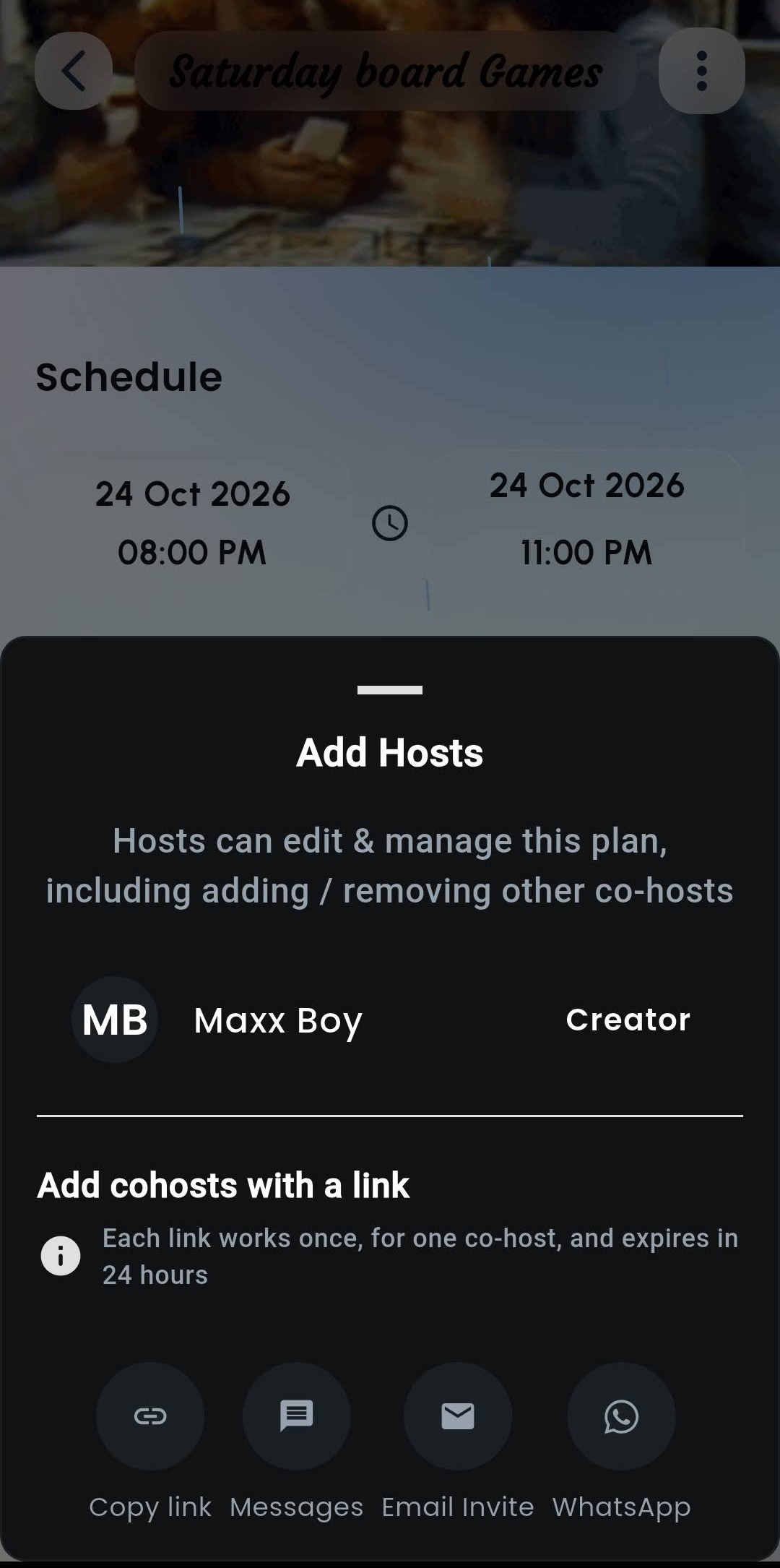
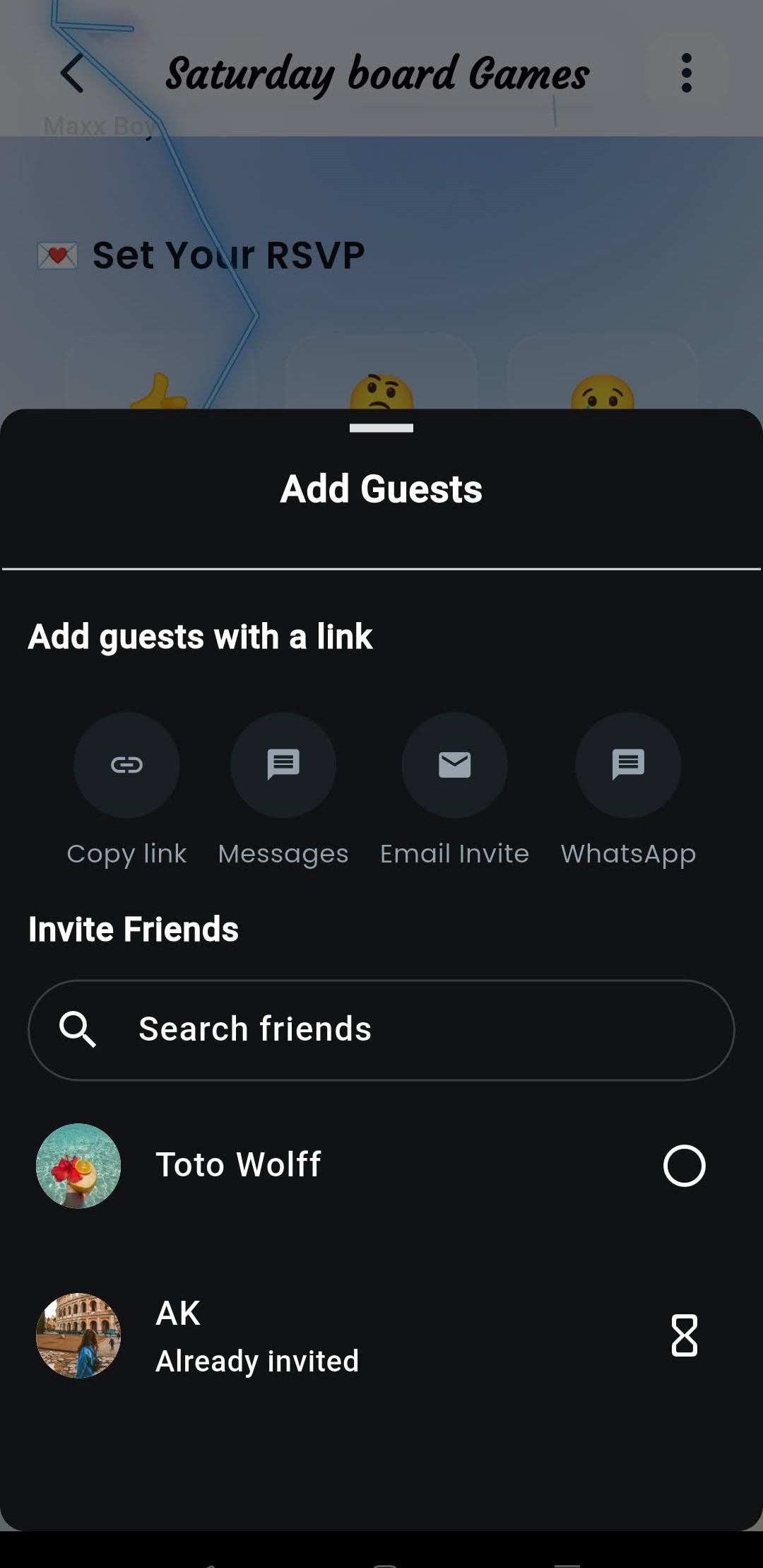
- Tap ”+ Add” by Host
- Share Co-Host Link
- Tap “Guests” Pill
- Pick Friends or Groups
- Collect Live RSVPs
Co-host privileges & shared controls
Share party management duties. Co-hosts get full editing rights — customizing the canvas theme, particle overlays, cover art, schedule run-of-show, venue location, dress code, and polls.
Single-use, 24-hour co-host invite links
Tap + Add under Hosted By to generate a secure co-host link. Each link works once for one co-host and expires in 24 hours — share privately only with trusted co-planners.
Multi-channel guest invite links
Tap Guests → Add guests with a link to share via WhatsApp, Messages, Email, or direct link copy. Friends without the app can view details and RSVP seamlessly on mobile web.
In-app friend search & live invite tracking
Search friends directly to send instant in-app invites. Live indicators show who is already invited with pending RSVP statuses so nobody receives duplicate invites.
Live RSVPs & protected host permissions
Guests respond with Going, Maybe, or Can’t Go, answer intake questions, and vote in polls — while core event details remain safely protected from unintended edits.
“I’ve set up our hangout in Getaway! Tap the link to RSVP, check out the venue and run-of-show, and vote in the dinner poll.”
STEP 3 · HANGOUT ESSENTIALS
Add the hangout essentials
Give superpowers to your hangout. Tap + Add on the Overview screen to pin vital event components — from Google Maps venue locations and dress code cards to shared checklists, PDF passes, and interactive polls — so nobody has to ask the same questions in messy chats.
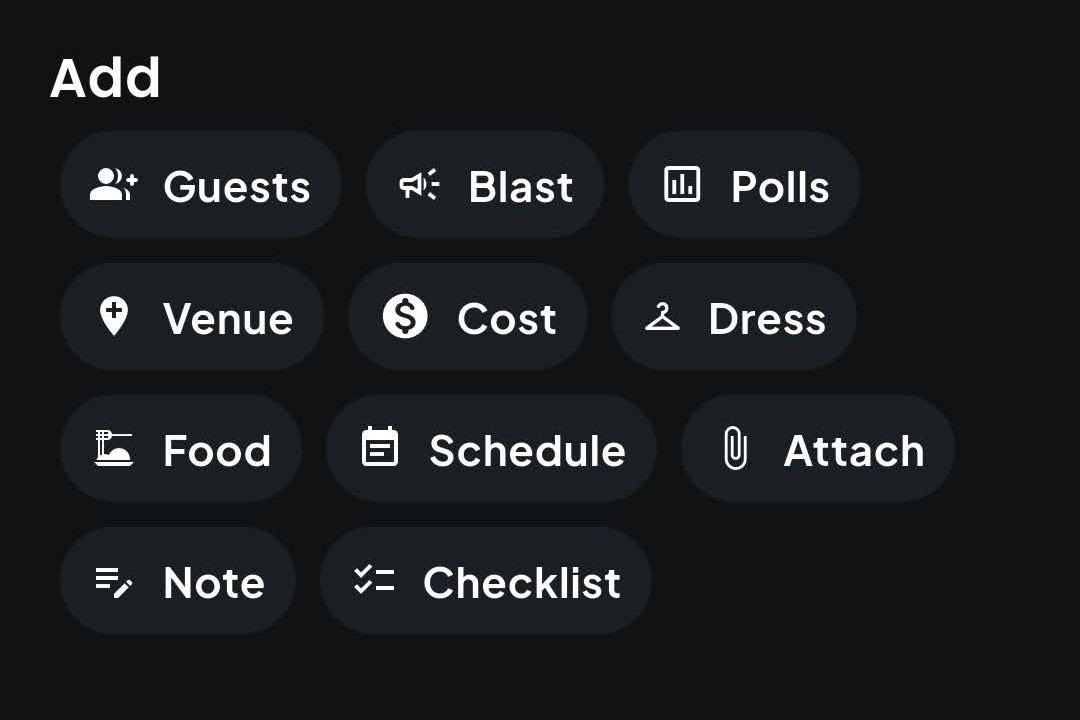
- Venue & Vibe
- Food & Cost
- Run of Show
- Notes & Checklists
- Polls & Blasts
Venue & vibe guidelines
Pin the exact address with Google Places for 1-tap navigation in Apple/Google Maps. Add a Dress code chip (e.g. “Festive Casual” or “All Black”) so friends arrive looking the part.
Food situation & cost transparency
Set expectations on meals (e.g. “Woodfired pizza & BYOB” or “Potluck dinner”) and pin estimated spending per head (e.g. ₹1,200) so guests know what to anticipate before RSVPing.
Run of show schedule
Activate the Schedule chip to lay out a vertical numbered rail mixing timed hours (20:00 Welcome Drinks) with untimed milestones (“Cake cutting & photos”).
Shared checklists & notes
Build collaborative to-do lists where friends can claim items (“Ice bags, cocktail shaker, board games”) and pin reference notes with Wi-Fi passwords, door buzzer codes, or gate instructions.
PDF attachments & broadcast tools
Attach entry passes, booking PDFs, or parking maps for 1-tap viewing, and launch interactive Polls or host Blasts directly from the Add menu.
| Action Chip | Host Action | What Guests Experience |
|---|---|---|
| Venue (📍) | Search Google Places to pin the exact address & GPS coordinates | 1-Tap navigation opening Apple Maps, Google Maps, or Uber/Ola |
| Dress (👗) | Type fashion guidelines (e.g. “Festive Casual”, “All White”, or “Retro 90s”) | A high-contrast visual glass card so no one arrives underdressed |
| Food (🍽️) | Set meal expectations (e.g. “Woodfired pizza & BYOB” or “Potluck dinner”) | Clear guidance on meals, drinks, and dietary coordination |
| Cost (💲) | Enter estimated spending per head (e.g. ₹1,200) | Financial transparency before friends tap Going or Maybe |
| Schedule (📅) | Build timed hours and untimed moments down a connected rail | A clear vertical run of show so everyone knows what’s happening and when |
| Note (📝) | Add rich notes for Wi-Fi passwords, gate buzzer codes, or house rules | Pinned reference cards that never get lost in the chat thread |
| Checklist (☑️) | Build shared tasks (e.g. “Ice”, “Bluetooth speaker”, “Snacks”) | Collaborative checklists where friends can claim items and tick them off |
| Attach (📎) | Upload PDF tickets, booking vouchers, floor plans, or parking guides | One-tap in-app PDF and image viewer for all attendees |
| Blast (📢) | Broadcast urgent announcements to all invited guests | High-priority push notifications and dedicated notification banner |
| Polls (📊) | Create single-choice or multi-choice polls for group decisions | Interactive voting with live percentage bars in Overview and Chat |
STEP 3.A · BLASTS
Send targeted Message Blasts
When you need to deliver critical updates without getting lost in group chat noise, use Message Blasts. Blasts are dedicated, one-way announcements from the host team that trigger instant push notifications and land in guests’ in-app notification inboxes — keeping communication clean, urgent, and actionable.
Tap Blast in the “Add” essentials menu
Located right in your hangout essentials sheet alongside Venue and Polls. Tapping Blast opens your host-exclusive broadcast studio to send one-way announcements and configure smart reminders.
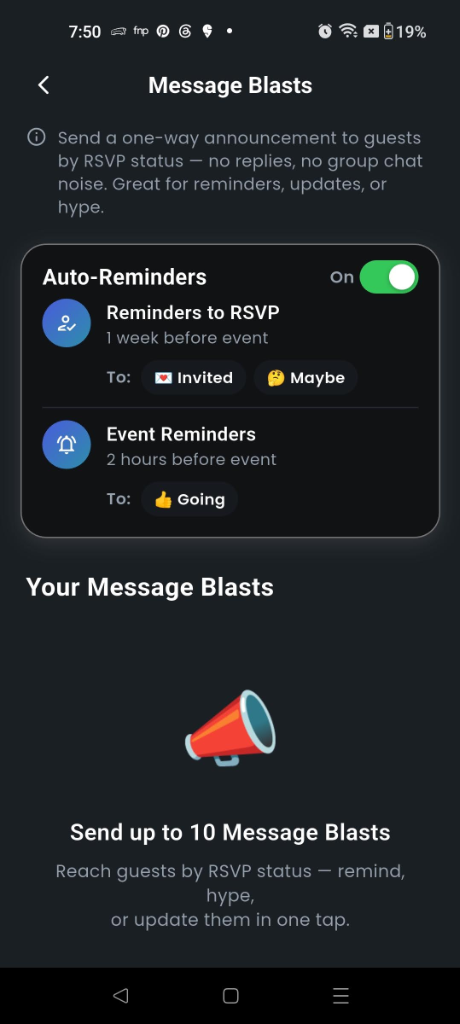
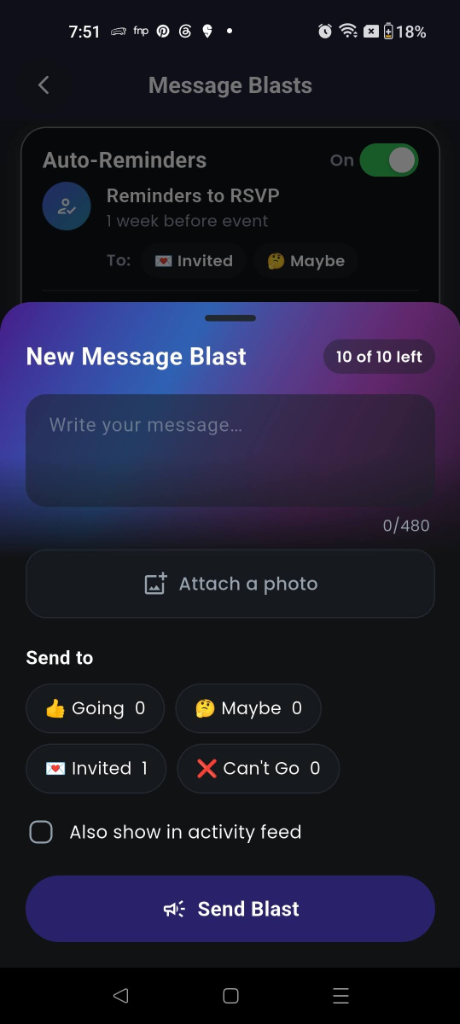
- Tap Blast Card
- Write Announcement & Add Photo
- Select RSVP Audience
- Broadcast Push Alert
One-way host announcements
Only the creator and co-hosts can compose blasts. Announcements bypass chat banter, fire immediate push alerts, and remain in a dedicated history tab.
Audience targeting by RSVP
Direct your blast specifically to Going, Maybe, Invited (unresponsive), or Can’t Go. The sender is excluded, and recipients freeze at send time.
Shared plan quota (10 total)
Each hangout has an allowance of 10 permanent blasts shared between hosts. Blasts cannot be edited or refunded once sent, keeping every announcement high-signal.
Background auto-reminders
Smart reminders run automatically prior to the hangout start time for RSVP follow-ups. They keep RSVPs moving without consuming your 10 manual blasts.
STEP 3.B · SCHEDULE
Schedule
The secret to great hosting is pacing. In Getaway, hangouts feature a dedicated Schedule tab designed specifically for real-world run of show — laid out as a vertical connecting thread with numbered markers so friends know what’s happening and when.
Marriage Anniversary Soirée
A multi-milestone evening balancing welcoming, formal toasts, dining, and dancing.
- 6:30 PM – 7:15 PMWelcome Cocktails & Photo Wall📝 Note: Signature welcome drinks at terrace bar; guestbook signing
- 7:15 PM – 7:45 PMVow Renewal & Champagne Toast📝 Note: Best man & maid of honor speeches; cue acoustic song
- 7:45 PM – 9:00 PMCandlelight Multi-Course Dinner☑️ Checklist: Confirm dietary course delivery with catering staff
- 9:00 PM – 9:30 PMAnniversary Montage Screening & Cake Cutting📝 Note: HDMI connection tested with projector; dimmed overhead lights
- 9:30 PM OnwardsCouple’s First Dance & Live Band📝 Note: Open dance floor & dessert lounge
- Tap ”+ New item”
- Set Start & End Time
- Add Title & Activity
- Attach Notes & Checklists
- Sort by Time or Reorder
Dedicated Schedule tab & numbered thread
From the Overview tab, tap the Schedule chip to activate a dedicated tab matching your canvas theme. Sub-events are plotted down a vertical rail with live numbered badges (1, 2, 3…) so everyone knows what’s happening now and what’s next.
Flexible time spans & 1-tap “Sort by time”
Use the clock dial picker to set precise start times with optional end times (e.g. 7:30 pm – 8:15 pm), or leave milestones as flexible untimed moments. Tap Sort by time to automatically organize the thread chronologically.
Sub-event notes & context cards
Tap ••• → Add note on any item to attach crucial details — like rules for party games (“Fast-paced game like Codenames or Love Letter”), speech prompts, or Spotify links. Notes appear as neat expandable cards directly under that schedule milestone.
Item-specific prep checklists
Tap Add checklist inside any schedule block to track sub-tasks specific to that moment (e.g. “Chill champagne, cue slideshow, test mic”), keeping hosts organized without cluttering the main plan.
Live sync & on-the-fly adjustments
If speeches run long or dinner is delayed, tap ••• to change times, clear times, or reorder items. Updates push live to every guest’s phone and mobile web view instantly without refreshing.
STEP 4 · GUEST QUESTIONNAIRE
Guest Questionnaire: Collect details upon RSVP
Collect dietary needs, +1 names, room preferences, and what everyone’s bringing — right when guests say they’re coming. No more chasing replies across chaotic group chats. The guest questionnaire attaches a private intake form directly to your hangout, prompting guests smoothly as they RSVP.
- Plan Settings (⚙️)
- Guest Questionnaire
- Pick Quick Starter or Add Question
- Choose Type & Set Required
- Save & Collect on RSVP
Quick starters & custom prompts
Set up your intake form in seconds. Tap ready-made starters — “Dietary restrictions or allergies?”, “Name of your +1?”, “What are you bringing?”, “Travel or room preferences?”, or “Your email address?” — or write custom prompts (up to 10 questions per hangout).
5 versatile question types
Match questions to the exact data format you need: Short Answer for free-form notes, Dropdown for single-choice lists (e.g. Veg / Non-veg / Vegan), Multiple choice for activity selections, Email with format validation for tickets, and Social handles (Instagram, TikTok, Snapchat, X, LinkedIn).
Required vs. optional & audience targeting
Mark essential questions Required so guests must complete them before their RSVP is confirmed; leave nice-to-know details Optional. By default, questions only prompt guests who tap Going, with a 1-tap toggle to also ask guests who RSVP Maybe.
Frictionless guest RSVP experience
When invitees open the plan, they see a subtle prompt: “Your host has a few questions”. The intake sheet appears naturally when tapping Going or Maybe. Guests can return anytime to tap Edit my answers without ever resetting their RSVP status.
Private host response dashboard
Review answers effortlessly: open Plan settings → Guest Questionnaire → View responses to see every guest’s answers summarized in a single private dashboard, or tap any attendee in the Guest List. Optional questions skipped by a guest cleanly show Not provided.
| Format | When to use | Privacy & Visibility |
|---|---|---|
| Questionnaire (📝) | You need each guest’s individual answer as they RSVP (dietary, +1 names, arrival times, email) | 🔒 Private: Only the guest and the host team can see the answers. Other guests never do. |
| Poll (📊) | The group is deciding an activity or preference together (e.g. “Pizza or burgers?”, “Which game first?”) | 🌐 Public: All invited guests see the live options, votes, and percentage bars in real time. |
STEP 5 · POLLS
Interactive Polls: Real-time group voting
Make group decisions effortless before and during your hangout. While the questionnaire handles private 1-on-1 intake, Getaway’s interactive polls let everyone vote together in the open.
Single-choice & multi-choice group polls
Need consensus on where to eat or which movie to watch? Tap the Poll chip in Overview to create a poll with single or multiple selections (e.g. “Which board game first? Catan / Secret Hitler / Codenames”). Hosts and guests can propose options and vote anytime.
Live visual percentage bars & chat sync
Votes tally in real time with dynamic animated progress bars. Active polls remain pinned in both the Overview essentials feed and the Plan Chat, ensuring nobody misses a group decision.
ROLES & FAQ
Host controls, permissions & common questions
To keep plans organized and prevent accidental overwrites, Getaway enforces clear permission boundaries:
| Customization Action | Host (Creator) | Co-Host | Invited Guest |
|---|---|---|---|
| Change Canvas Theme & Effects | ✅ Full access | ✅ Full access | ❌ Read-only |
| Edit Cover Art & Title Styles | ✅ Full access | ✅ Full access | ❌ Read-only |
| Add/Edit Schedule & Run of Show | ✅ Full access | ✅ Full access | ❌ Read-only |
| Set Venue, Dress Code, Food & Cost | ✅ Full access | ✅ Full access | ❌ Read-only |
| Configure Guest Questionnaire | ✅ Full access (create, edit, view all) | ✅ Full access (create, edit, view all) | 📝 Answers own questions only |
| Create Interactive Polls | ✅ Full access | ✅ Full access | ✅ Can vote & suggest |
| View GPS Navigation & Details | ✅ Full access | ✅ Full access | ✅ Full access |
Common questions
Do guests have to answer the questionnaire?
Only questions marked Required are mandatory before the RSVP saves. Questions left Optional can be skipped by the guest and will appear as Not provided in your host dashboard.
Can other guests see what someone answered in the questionnaire?
No. Questionnaire answers are strictly private between the individual guest and the host team (creator and co-hosts). They are never visible to other attendees.
What happens if I add or edit questions after guests have already RSVP’d?
Existing RSVPs are never reset or cancelled. Guests who already confirmed are prompted with a friendly in-app banner — “New or updated questions from your host” — allowing them to provide the new details anytime.
Can I use the guest questionnaire on trips as well as hangouts?
Yes! Every hangout and group trip in Getaway includes the full guest questionnaire feature with identical controls and question types.
Can I change the theme or animated effect after guests have already RSVP’d?
Yes. You can change the theme, effect, or cover at any point — even while the hangout is happening. As soon as you select a new style, it updates live across all attendees’ screens without requiring them to reload the app.
Do guests without the Getaway app see my custom theme and effects?
Yes! When guests open your hangout invite link in their web browser (on iOS Safari, Android Chrome, or desktop), Getaway renders the full interactive experience — including your custom typography, cover GIF, canvas theme, and falling particle effects.
How many items can I add to the run of show schedule?
There is no strict limit. You can add as many timed hours and untimed moments as you need. The vertical rail automatically connects all numbered entries with smooth scrolling.
Can co-hosts customize the hangout?
Yes. Anyone you promote to a Co-Host has full permission to update the theme, effect, cover, schedule, venue map pin, dress code, food situation, and notes.
What happens if I remove a Venue or Dress Code chip?
Tapping into the module allows hosts and co-hosts to edit the details or tap Delete. If deleted, the chip returns to the ”+ Add” row on the Overview screen so you can add a fresh one whenever you like.
Can I turn off the animated effect if a friend finds it distracting?
Yes. You can open Plan Settings → Effect → select None (🚫). This immediately removes all particle animations while preserving your chosen canvas theme backdrop.