
GETAWAY GUIDE
Itinerary power tools
Supercharge your travel days with 1-tap route optimization, interactive map layers, live transit estimates, card management, and attached ticket vouchers.
TOOL 1
1-Tap route optimization: Save time & fuel money, minus the detours
Add your start, destination, and every stop in between in whatever order they come to you. Getaway automatically orders the route, calculates driving times, and keeps the whole group moving without the backtracking—slashing travel time, fuel costs, and the inevitable “are we there yet?”.
- Add Places in Any Order
- Tap “Optimize Route”
- Select Start & End (or Auto-Suggest)
- Calculate Fastest Path
- Save 38 Min, 25.7 km & ~28% Fuel
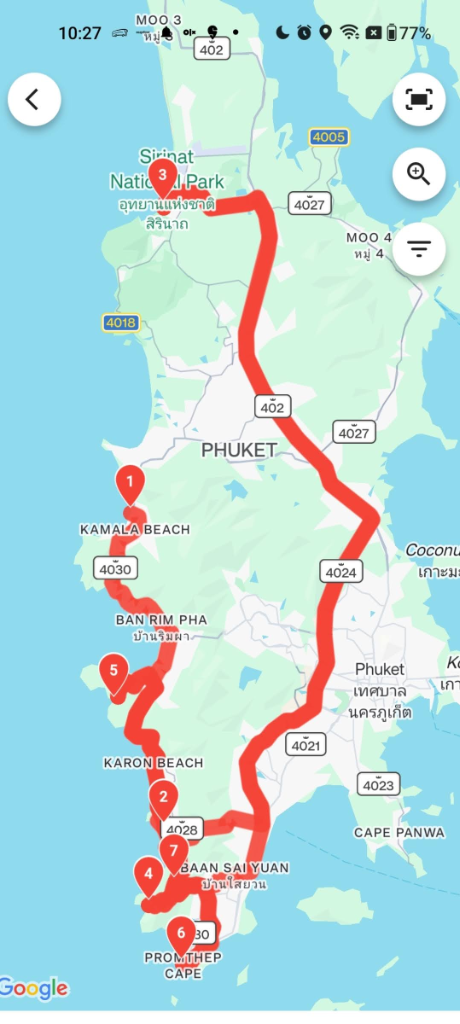
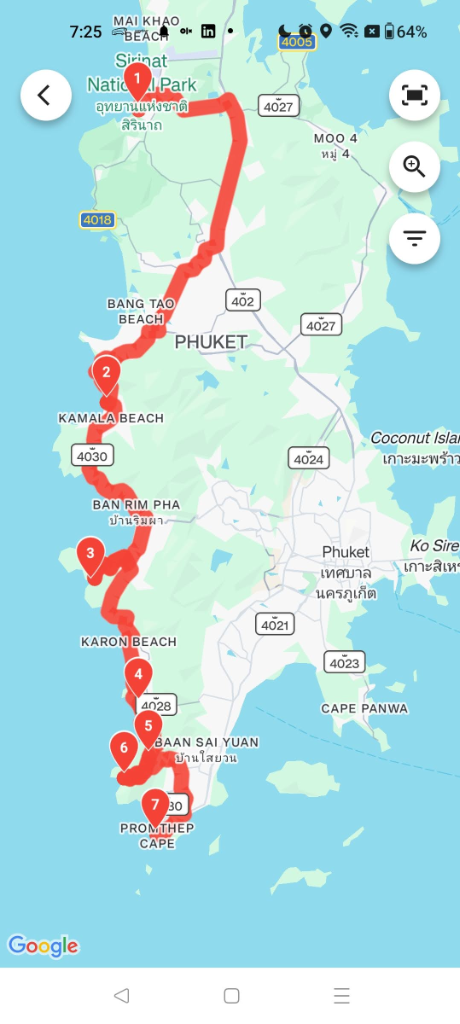
Before vs. after: Eliminating the zigzag
Adding stops spontaneously leads to wild backtracking—like starting at Kamala Beach, driving 30+ km north to Sirinat National Park, and darting south again. Getaway untangles the route into an orderly, single-direction progression.
Measurable savings: 38 min & ~28% fuel
Optimization provides instant mathematical payoff. In our Phuket day trip, Getaway shaved 38 minutes of transit, eliminated 25.7 km of wasted driving, and reduced ~28% of fuel consumption with a single tap.
Smart start & end selection (Auto-suggest)
Tap 〰️ Optimize route to open the setup modal. Set your resort or airport as the fixed start or end point, or choose ✨ Auto-suggest to let Getaway calculate the optimal origin and destination automatically.
Updated transit blocks & turn-by-turn navigation
Once organized, every inter-stop block updates with refreshed walking and driving estimates (e.g. 🚗 14.8 km / 22 min). Tap Direction ▶ anytime to launch turn-by-turn GPS in Google Maps or Apple Maps.
TOOL 2
Interactive full-screen map view: See your trip in the real world
Reading a list of place names doesn’t always convey real-world distances or geographical layout. Tap the floating map button (🗺️) to instantly project your entire multi-day itinerary onto a high-resolution, interactive map layer with live route corridors, synced place cards, and 1-tap navigation.
- Tap Floating Map Icon (🗺️)
- View Multi-Day Color Pins
- Tap Any Pin to Sync Card
- Swipe Carousel Across Stops
- Open Details & 1-Tap GPS
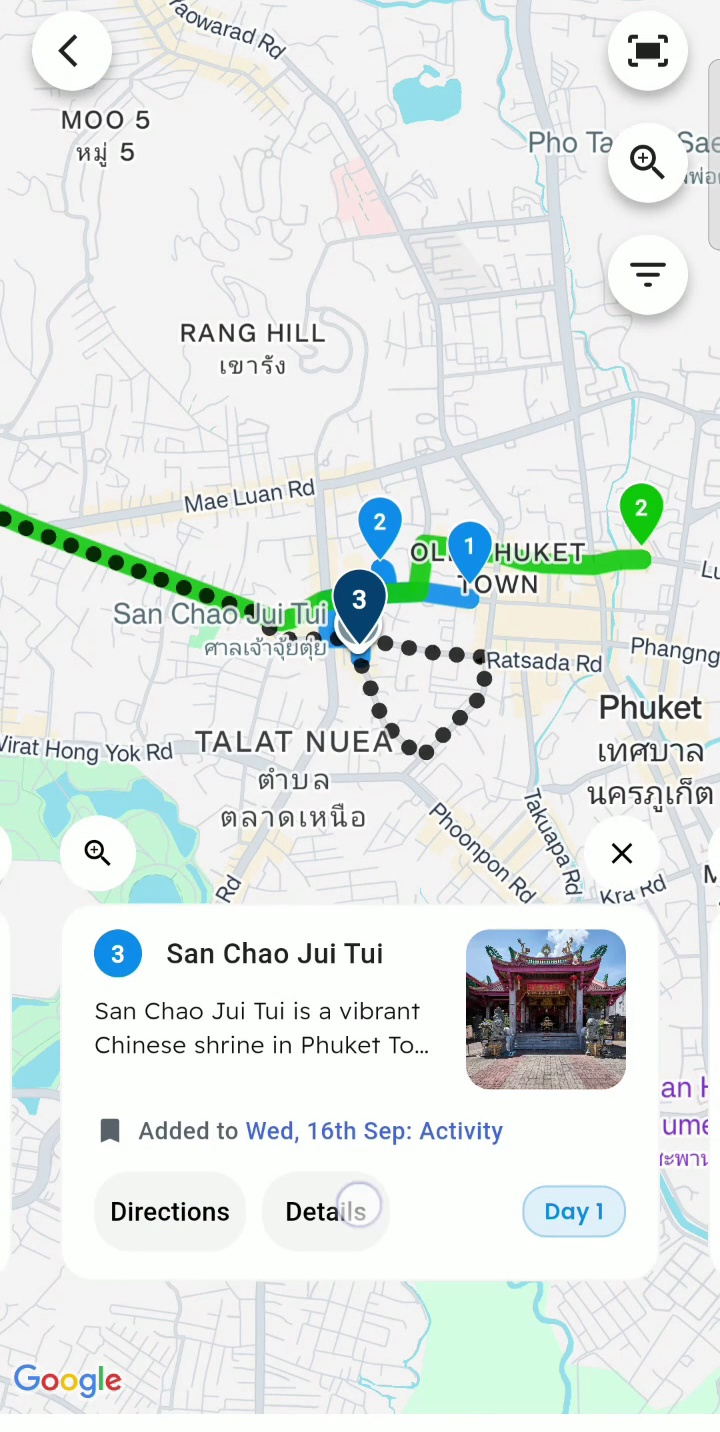
Multi-day color-coded pins & corridors
Every day of your trip is color-coded (e.g. Blue for Day 1, Red for Day 2) with clearly numbered pins (1, 2, 3…). Solid driving lines and dotted walking trails connect consecutive stops so you visualize your daily travel corridors instantly.
Bi-directional card & pin synchronization
Tap any numbered pin on the map, and the bottom carousel automatically snaps to that place card. Conversely, swiping through the cards smoothly flies the map camera and centers on the next destination.
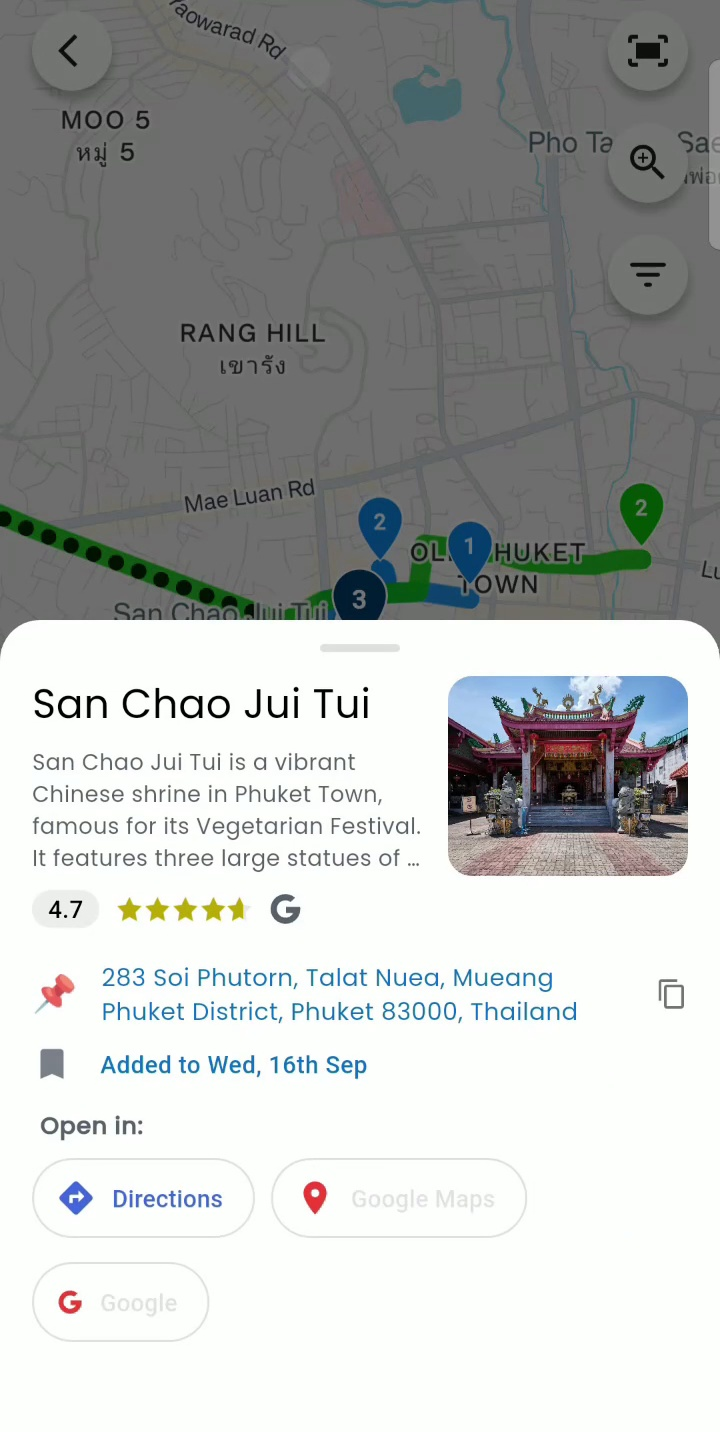
In-depth place inspection sheet
Tap Details on any place card to view verified Google star ratings (e.g. 4.7 ★), high-resolution cover photos, historical background, and exact street addresses with a 1-tap copy shortcut.
Instant turn-by-turn navigation
No need to manually search addresses in external apps. Tap Directions or Google Maps from the map card to open native voice turn-by-turn GPS with coordinates pre-populated.
TOOL 3
Turn-by-turn transit & directions
Group trip schedules easily derail when travel times are guessed. Getaway automatically inserts transit blocks between consecutive stops so you always know real distances before you step outside.
Automatic walk & drive estimates
Every inter-stop block displays exact walking and driving duration and distance (e.g. 🚶 33 min · 🚗 2.7 km / 4 min) calculated from real map data.
1-Tap navigation launcher
Tap Direction ▶ between any two stops to open Google Maps or Apple Maps with the destination pre-loaded—no copy-pasting addresses required.
Realistic travel buffers
Seeing that two spots are 30 minutes apart stops you from packing activities too tightly, ensuring your crew arrives relaxed rather than rushing.
Walkability indicators
Quickly identify when stops are within easy strolling distance (under 10 minutes) so your group can skip ordering unnecessary rideshares.
TOOL 4
Organize & rearrange place spots, notes & checklists for a day
Trips evolve in real time—weather shifts, museums close on Mondays, or group energy calls for a quick swap. Getaway gives you complete flexibility to reorder spots within a day, move activities across dates, and organize daily operational notes and packing checklists alongside your places.
- Tap 3-Dots on Any Spot (⠇)
- Move Spot to Another Day
- Drag & Drop Reorder Days
- Rearrange Activities Cross-Day
- Organize Notes & Checklists
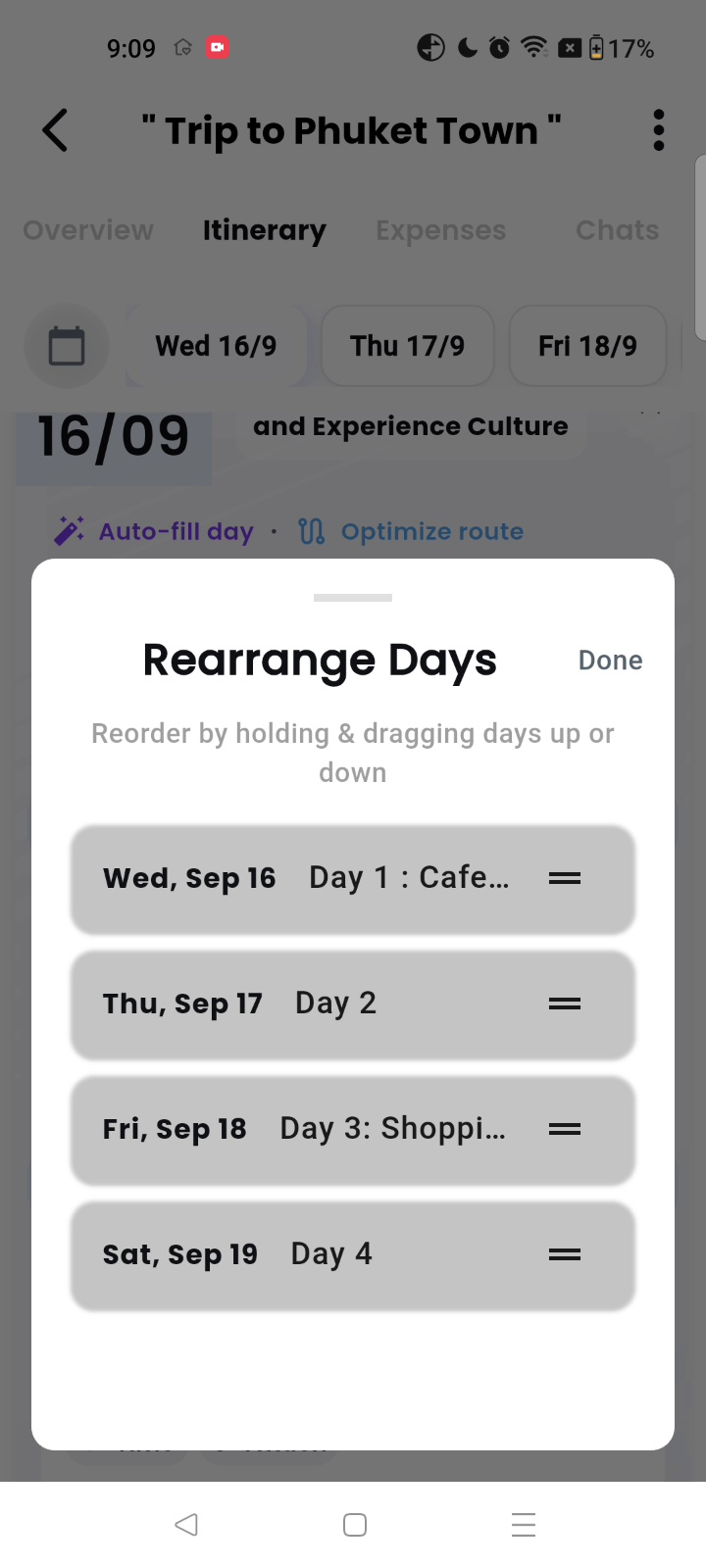
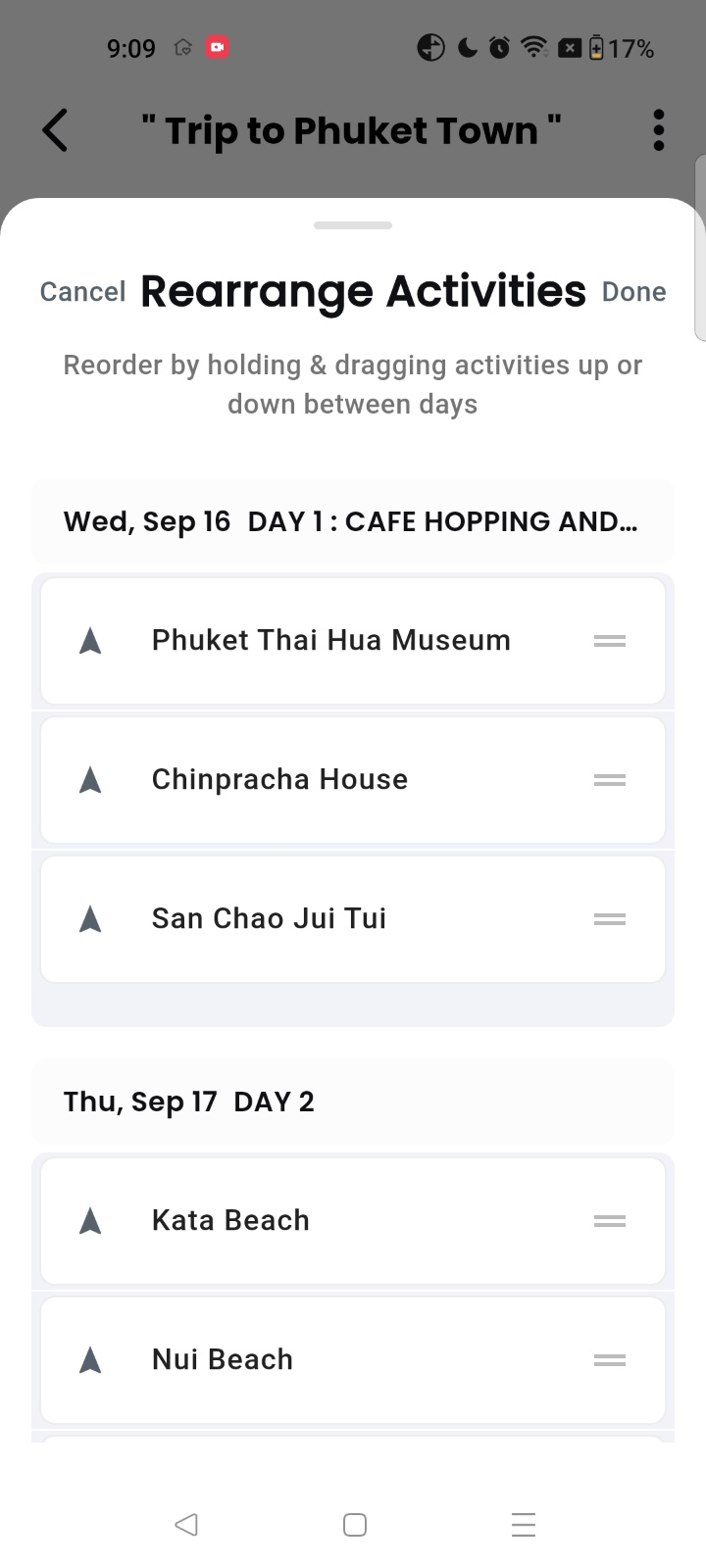
Cross-day activity drag-and-drop
Open Rearrange or move → Rearrange Activities to drag and drop spots between Day 1, Day 2, or Day 3 without deleting and re-creating them from scratch.
Whole-day drag-and-drop reordering
Tropical rain in the forecast? Open Rearrange Days to swap your outdoor beach day with an indoor shopping or spa day in a single drag gesture. All activities and notes travel along.
Instant “Select to copy/move”
Tap Select to copy/move on any spot’s 3-dots menu (⠇) to open a calendar date picker, sending that spot to another date with all timings, notes, and attached tickets intact.
Integrated daily notes & pack checklists
Tap 📝 Add note or ☑️ Add checklist at the bottom of any day card to pin vital daily reminders (e.g. “Carry original passports”, “Modest temple dress code”) directly alongside your spots.
TOOL 5
Activity timings & locked slot scheduling
Some moments are flexible strolls, while others have strict entry deadlines. Getaway allows you to attach precise arrival windows, visit durations, and inline reminders directly onto any activity card.
Arrival & departure windows
Tap 🕒 Time on any activity card to set scheduled hours (e.g. 09:00 – 10:30) displayed as a prominent badge on your timeline.
Custom inline reminders
Tap the card description to type custom instructions like “Carry your IDs” or “Dress code: covered shoulders” visible to all travelers.
Locked slot protection
Activities with scheduled times are treated as firm anchors. Route optimization will re-order flexible stops around your fixed commitments without altering your booking time.
Synchronized group schedules
When everyone can see scheduled times on their own phone, hosts spend zero time answering “What time are we meeting?” or “When is our reservation?”.
TOOL 6
Ticket attachments & PDF vouchers
Standing in a ticket line while desperately searching your email inbox for a PDF confirmation is stressful. Getaway lets you pin booking vouchers, e-tickets, and QR passes directly to the exact activity card where you need them.
Direct activity file pinning
Tap 📎 Attach on any activity card to upload admission tickets, ferry vouchers, cooking class confirmations, or barcode screenshots.
Instant gate & counter check-in
Arriving at a museum or tour depot? Open the activity on your timeline and tap the attachment to show your barcode or booking reference in seconds.
Shared offline access
Attachments sync across the entire travel party and remain cached offline on travelers’ phones—lifesaving when cellar signal drops at attraction entrances.
Universal format support
Supports PDFs, JPGs, PNGs, and digital wallet screenshots up to 10 MB, covering everything from booking portal receipts to mobile boarding passes.
TOOL 7
Destination Explore hub & in-canvas discovery
Unsure what to do next or looking for hidden local spots? Tap the floating search button (🔍) on your itinerary canvas to enter Getaway’s rich Destination Explore Hub—complete with travel tips, must-see wonders, social video reels, and curated multi-day guides you can import straight into your schedule with a single tap.
- Tap Floating Search (🔍)
- Browse Tips, Wonders & Reels
- Explore Curated 3-Day Guides
- Tap “Add to trip plan”
- Land on Timeline with Live Transit
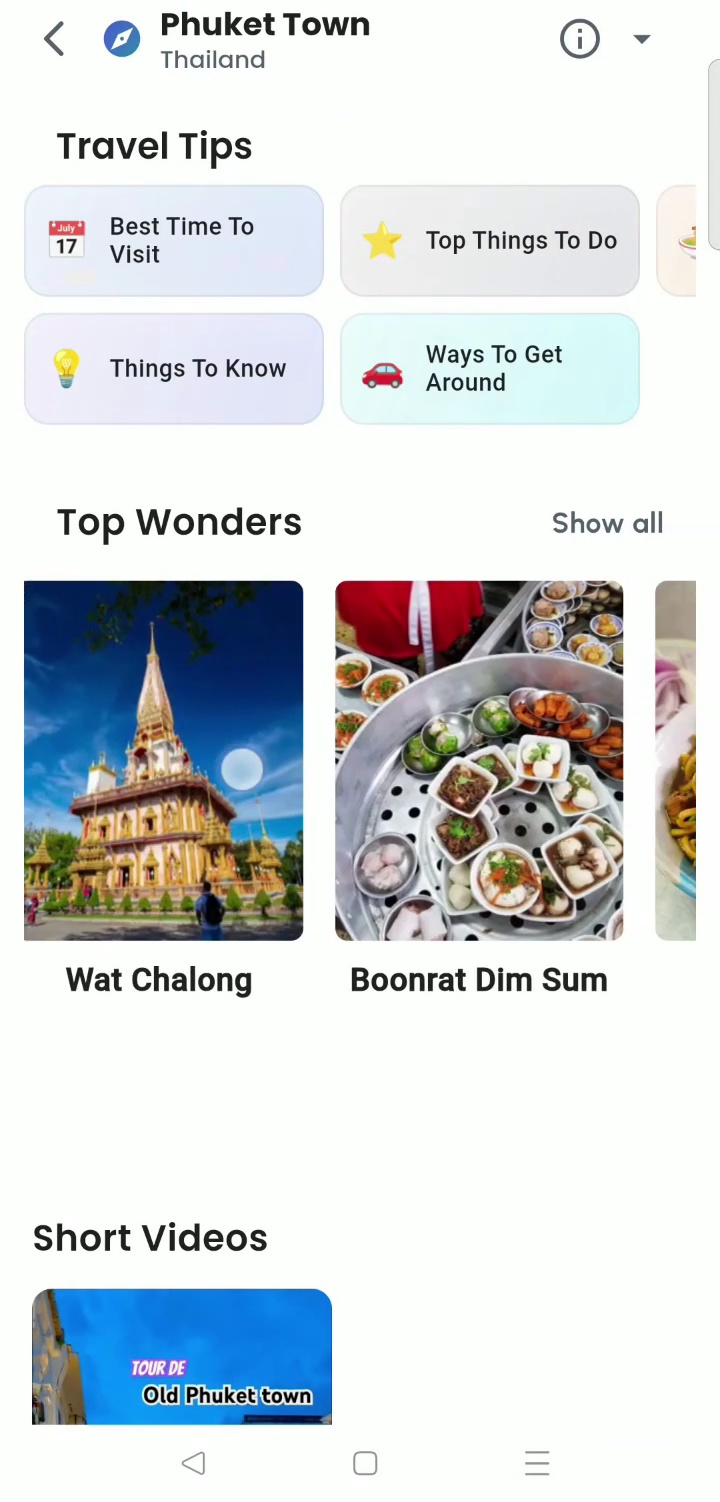
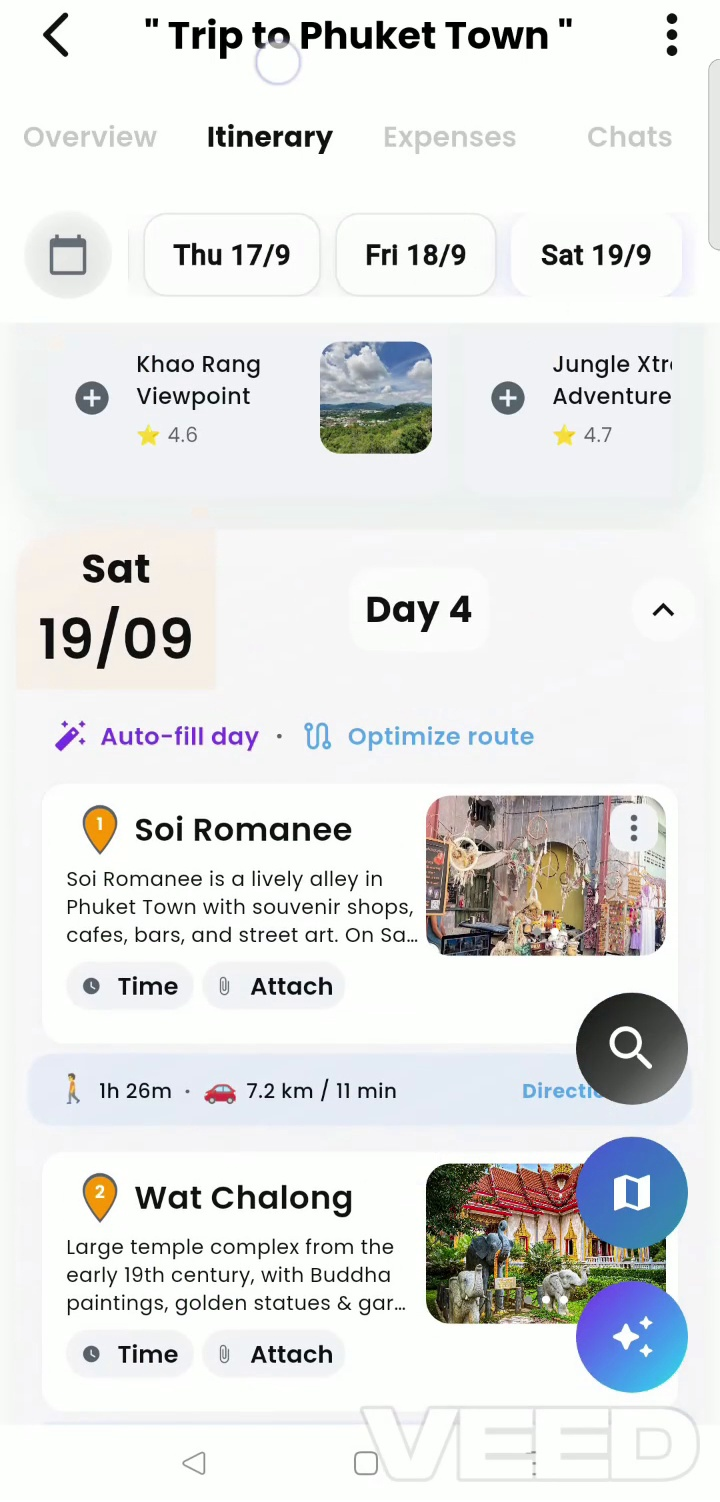
Dedicated destination travel hub
Browse verified logistical advice tailored to your destination—including Best Time To Visit, Things To Know, Top Things To Do, and Ways To Get Around without jumping to external search engines.
Curated multi-day editorial guides
Open pre-built local itineraries (such as “3 Perfect Days in Phuket Town”) to explore day-by-day routes, traveler reviews, star ratings, and photo galleries curated by destination experts.
1-Tap “Add to trip plan” modal
Tap the bookmark icon on any attraction, restaurant, or guide stop to reveal the Add place to… sheet. Choose your trip and target day (e.g. Sat, 19 Sep) to pin it to your timeline instantly.
In-canvas “Suggested Places” carousel
Docked right on each day card, Getaway dynamically surfaces nearby recommendations (e.g. + Khao Rang Viewpoint, + Jungle Xtreme Adventures) for instant 1-tap detour additions.
Your power tools checklist
- Daily route is optimized to eliminate zigzagging and unnecessary transit.
- Stops are visualized on the interactive map layer to confirm geographic clustering.
- Walking and driving times between consecutive stops are verified.
- Firm booking times are set and locked for pre-scheduled tours or reservations.
- Custom inline reminders (IDs, dress codes, vouchers) are noted on cards.
- Activities and entire days are rearranged to align with weather and local schedules.
- PDF vouchers, entry tickets, and QR barcodes are pinned to relevant activity cards.
- Day-specific gear checklists and operational notes are attached.
Common questions
Can I re-optimize a route after adding a spontaneous stop?
Yes. Whenever you add a new activity or rearrange your day, simply tap 〰️ Optimize route again to re-sequence the remaining stops.
Will moving an activity to another day mess up its attachments or notes?
No. When you use Select to copy/move, all associated notes, scheduled times, and attached voucher PDFs move along with the activity to the new date automatically.
Will other group members be able to open my attached PDF tickets?
Yes. Any voucher or ticket attached to an activity is synchronized to the shared trip dashboard so any co-host or invited traveler can present it at check-in.
Can I launch turn-by-turn directions without cellular service?
If you have downloaded offline maps in Google Maps or Apple Maps, tapping Direction ▶ will launch your navigation app and route using offline GPS data.
Where can I learn more about AI itineraries and group trip logistics?
Check out our companion guides on Creating an AI itinerary and Planning a group trip.